
19. Backup, Restore, and Maintenance
19.1 Export Database Backup
- Go to Administration -> Settings.
- Click Export.
- Save the database backup file.
- Manually back up the media library separately.
19.2 Import Database Backup
- Go to Administration -> Settings.
- Click Import.
- Choose a valid backup file.
- Upload and wait for restore completion.
- Restart or refresh the application if prompted.
19.3 Tidy Library
- Go to Administration -> Settings.
- Click Tidy Library.
- Choose options such as removing old revisions and unused media.
- Confirm during a maintenance window.
20. Logs, Audit Trail, and Sessions
20.1 Review Logs
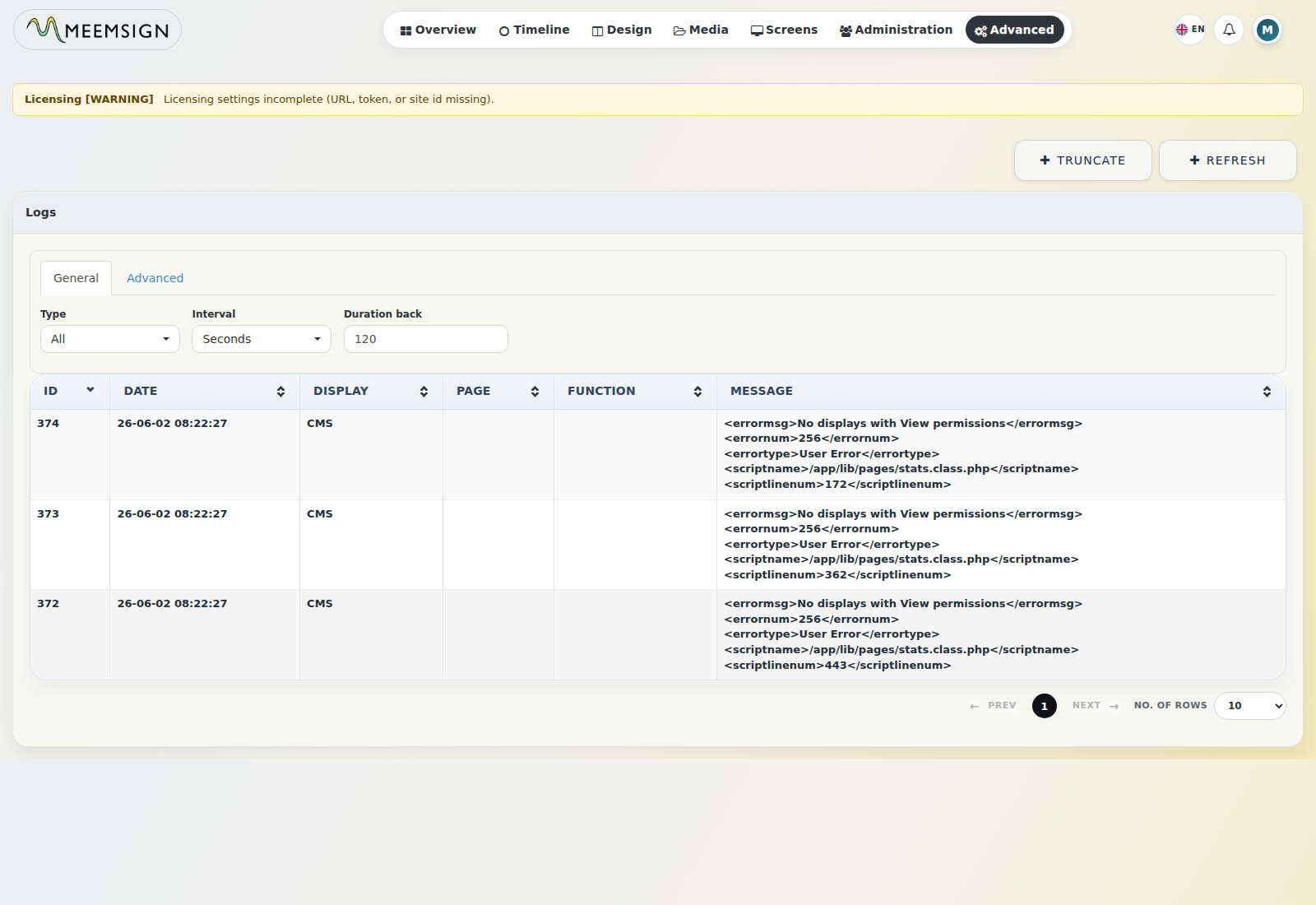
- Go to Advanced -> Log.
- Filter by type, interval, date, page, function, or display.
- Click Refresh to update results.
- Use Truncate only when log retention policy allows.
20.2 Review Audit Trail
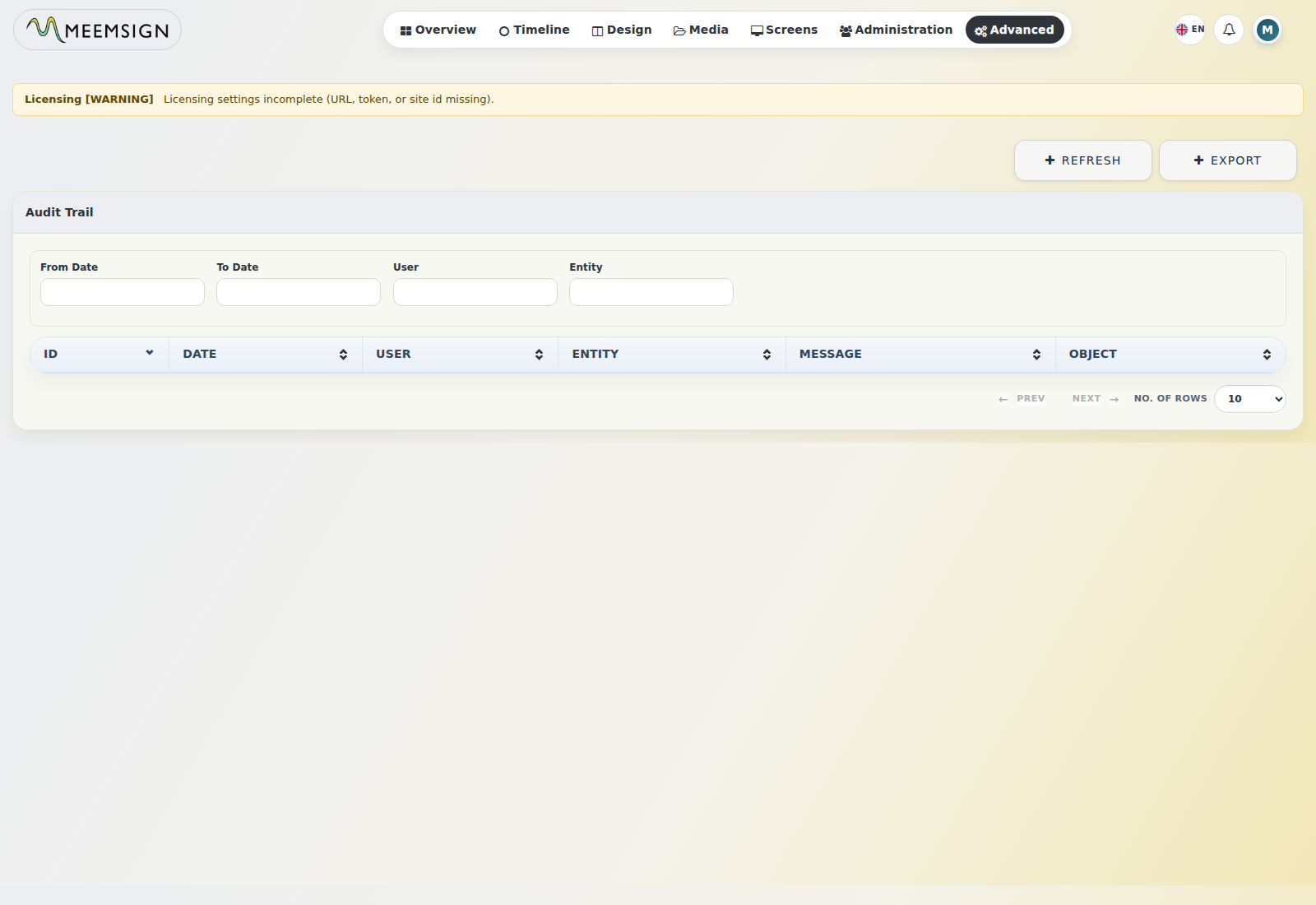
- Go to Advanced -> Audit Trail.
- Filter by date range, user, entity, or object.
- Review audit messages.
- Use Export to download CSV.
20.3 Manage Sessions
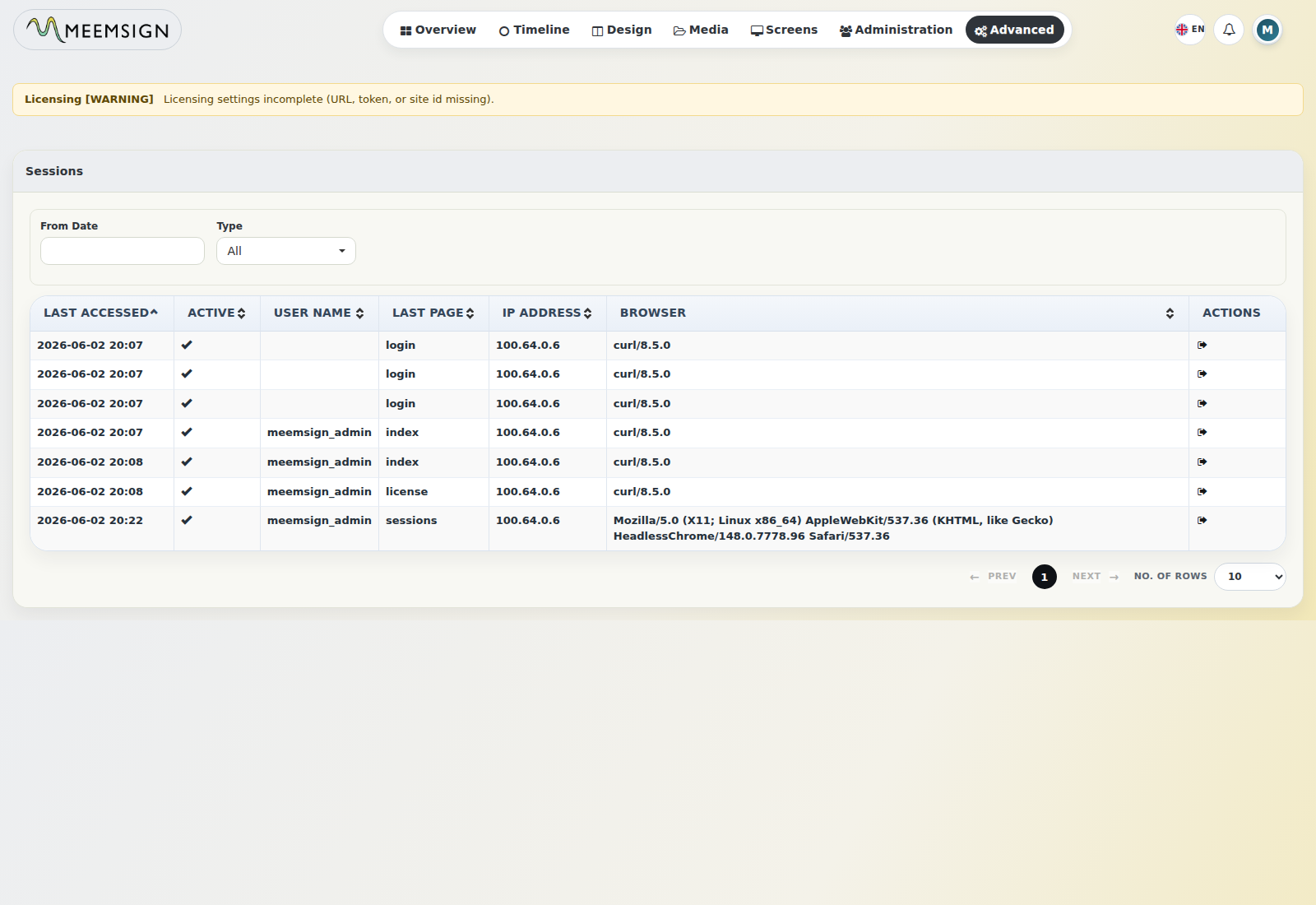
- Go to Advanced -> Sessions.
- Filter sessions by date or type such as active, guest, or expired.
- Review last accessed time, user, last page, IP address, and browser.
- Use Logout to terminate a user session when required.
21. About / Product Information
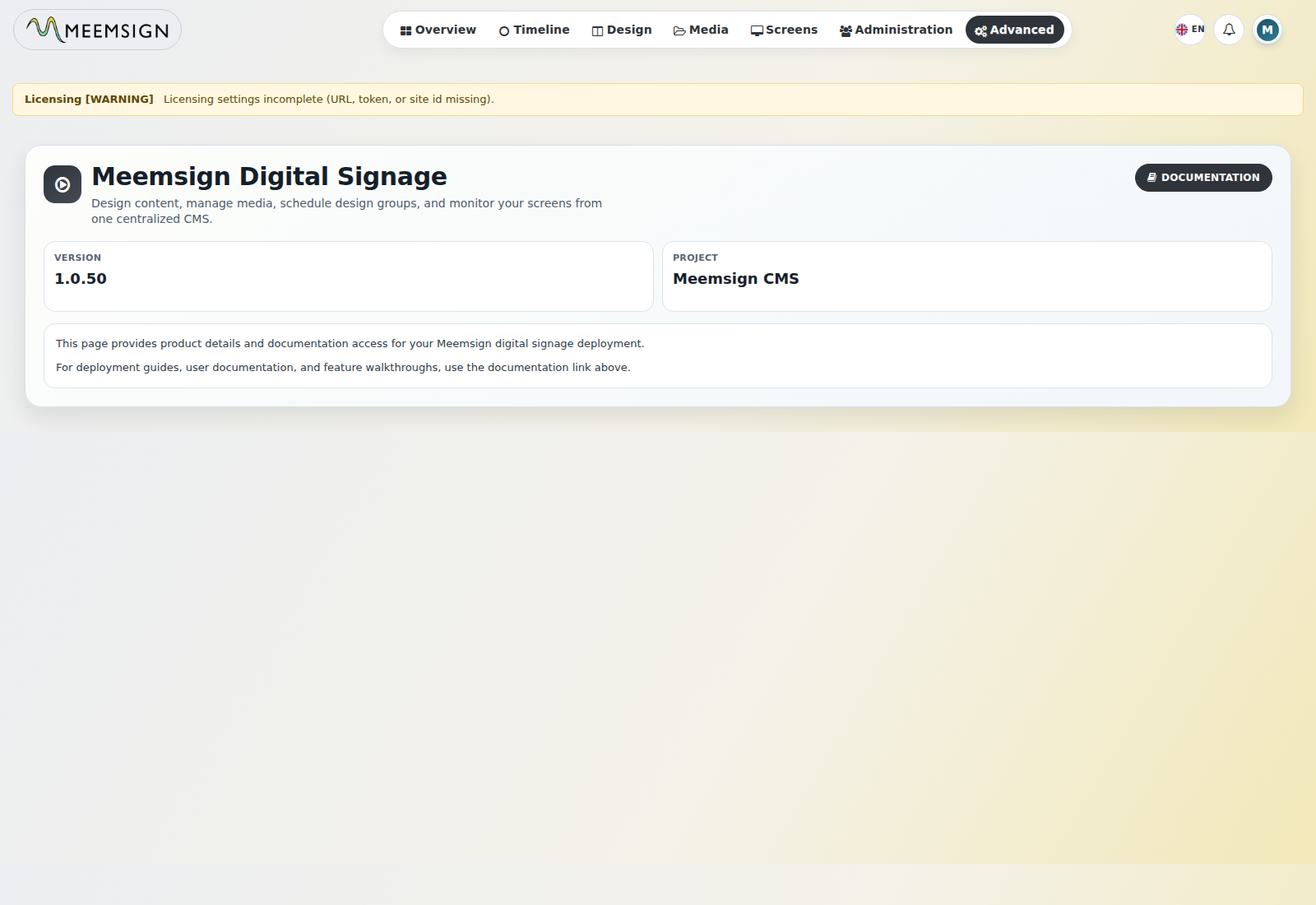
- Go to About.
- Review product name, version, documentation link, and licensing information.
22. Standard Publishing Workflow
Use this workflow for normal content publishing.
Step 1 - Prepare Screens
- Register or verify screens under Screens.
- Assign each screen to appropriate Screen Groups.
- Assign the correct Screen Settings profile.
- Confirm default design/layout configuration.
Step 2 - Upload Media
- Go to Media.
- Upload required assets.
- Add tags and metadata.
- Confirm assets are active and not retired.
Step 3 - Create Design
- Go to Design.
- Create or copy a design.
- Add regions.
- Assign media to regions.
- Preview the design.
Step 4 - Optional: Create Design Group
- Go to Design Groups.
- Create a campaign.
- Assign one or more designs.
Step 5 - Schedule Content
- Go to Timeline.
- Add an event or use Schedule Now.
- Select screens or screen groups.
- Select the design or design group.
- Set schedule date/time, priority, and repeats.
- Save.
Step 6 - Monitor Playback
- Review Overview and Screens.
- Check Statistics for playback and availability.
- Review logs if playback does not occur.
23. Administrative Best Practices
23.1 Security
- Do not share administrator credentials.
- Create named users instead of shared administrator accounts.
- Use user groups to grant least-privilege access.
- Review sessions and audit trail regularly.
- Rotate temporary passwords after setup.
23.2 Content Governance
- Use tags for media and designs.
- Retire old designs instead of deleting them immediately.
- Preview designs before scheduling.
- Use design groups or campaigns for multi-layout playback.
23.3 Operational Maintenance
- Back up database and media library before major changes.
- Schedule library tidy operations during maintenance windows.
- Review licensing status and screen limits.
- Monitor screen last-access and availability.
- Export statistics for monthly reporting where required.
24. Troubleshooting Quick Reference
| Symptom | Recommended Check |
|---|---|
| Cannot log in | Verify URL, credentials, session cookies, and server availability. |
| Screen not showing content | Check screen status, last accessed time, default design, schedule, and group membership. |
| Content not visible in design | Verify media is uploaded, active, permitted, and assigned to the region. |
| Schedule not playing | Confirm event date/time, target screens/groups, priority, and repeat configuration. |
| User cannot see menu item | Check User Group -> Menu Security and Page Security. |
| User cannot edit content | Check ownership and item-level permissions. |
| Upload fails | Check file type support, upload size limits, and library write permissions. |
| Licensing warning | Check licensing URL, token, site ID, SSL, timeout, and manual validation result. |
| Email alerts not sent | Verify notification settings, SMTP settings, recipients, sender, and test connectivity. |